
The Personalized Video Platform Connector by Mediawide, integrates the Mediawide Video Platform with HubSpot contacts and lists, which lets users:
- Create a personalized video for each contact in a list.
- Upload the created PURL to the HubSpot Contact to use in email or SMS marketing.
Install the app
[Describe instructions to install your app and connect a HubSpot account, with visual aids for each step.] For example:
- Log in to the Mediawide Personalized Video Platform – https://www.personalizedvideoplatform.mediawide.com, or your local installed instance.
- Navigate to Integrations > HubSpot.
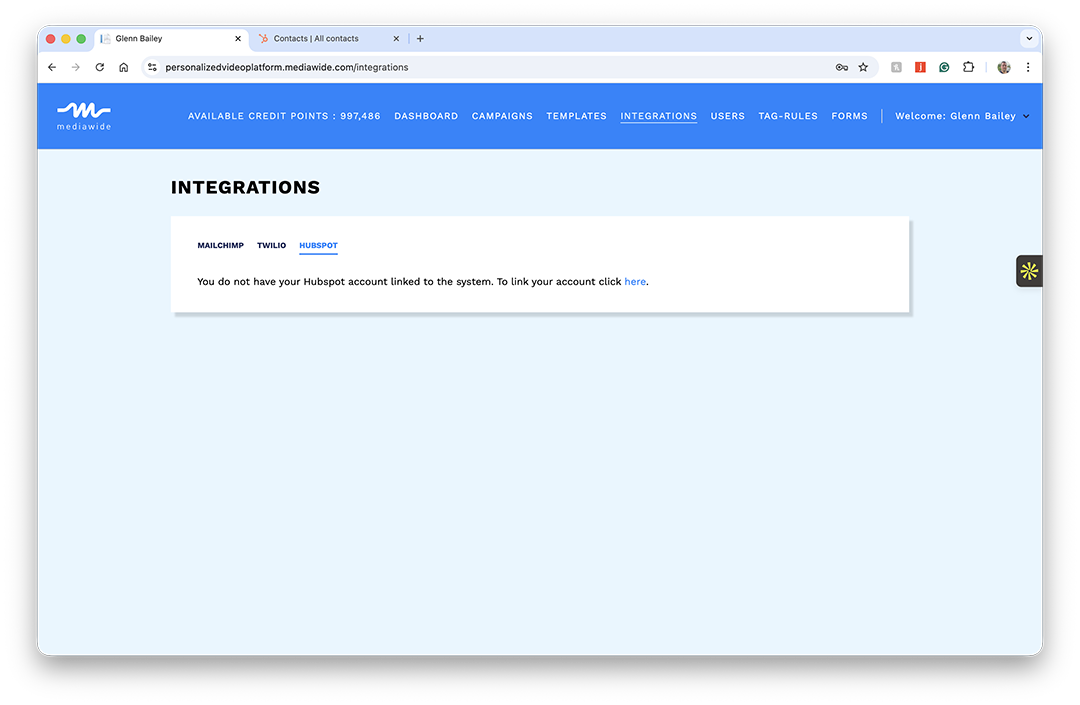
- Click on the link.
- Select your HubSpot account.
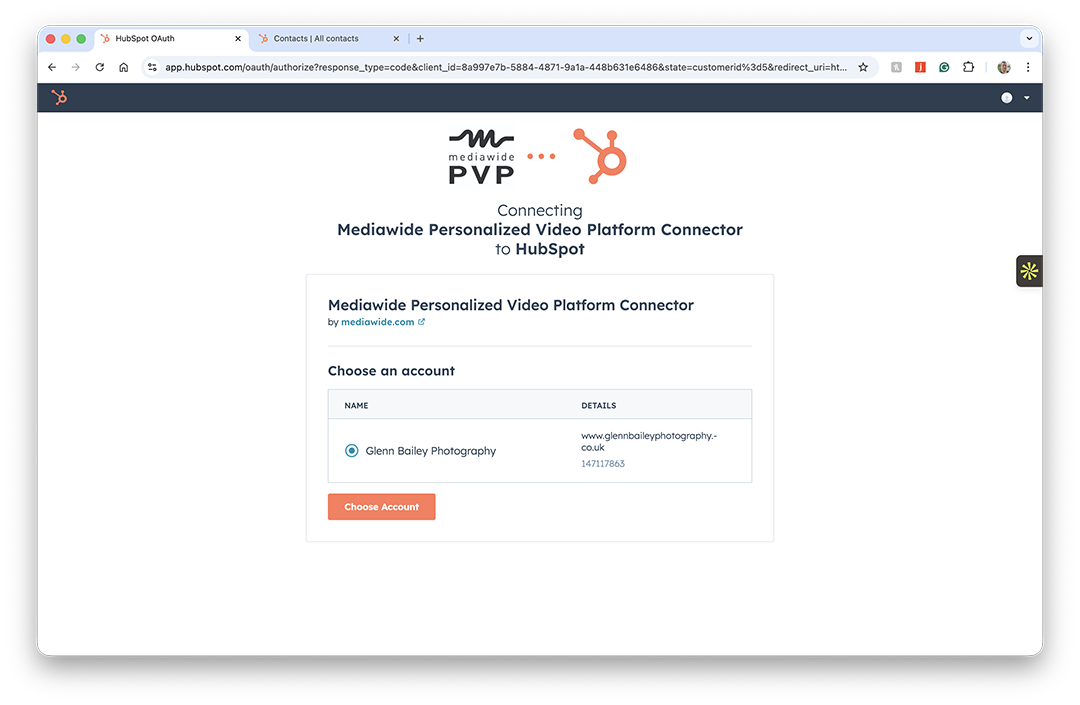
- Click Choose Account.
- Review the requested scopes on this screen. Mediawide Personalized Video Platform Connector requests access to read and write contacts, lists, custom objects, and custom object definitions.
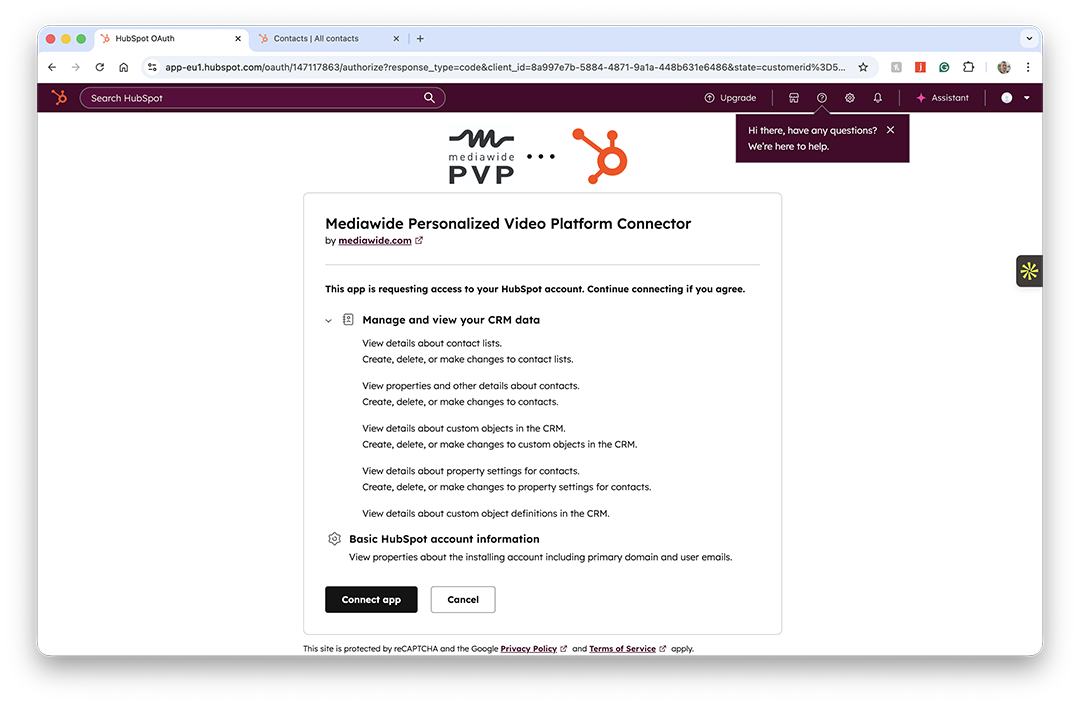
- Click Connect app.
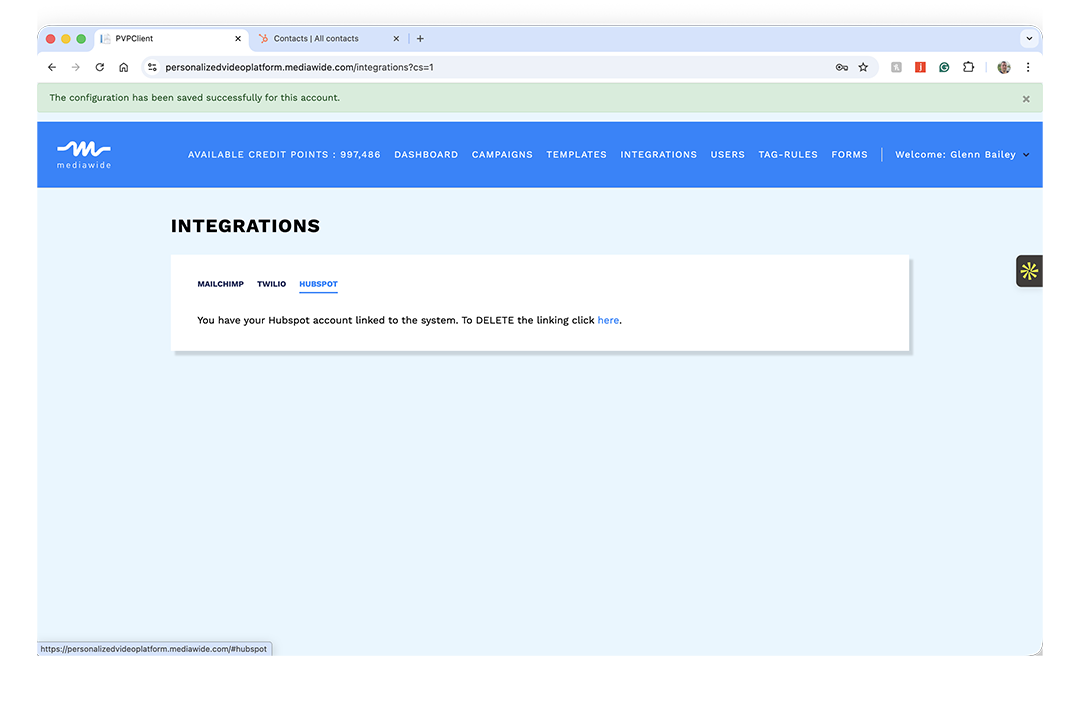
- You will be redirected to the Mediawide Personalized Video Platforms “Integrations” page, and message stating ‘Your configuration has been saved successfully for this account’ will appear.
Configure the app
There are no configurations within the Mediawide Personalized Video Platform, only when you create a campaign, can you integrate with HubSpot.
You will need to configure HubSpot though, as a dedicated contact field needs to be created to store the newly created personalied Video PURL.
Create a Contact Property Field to store the PURL
Within HubSpot, you will need a new Contact Property. You can create this in Hubspot Settings – Data Management – Properties.
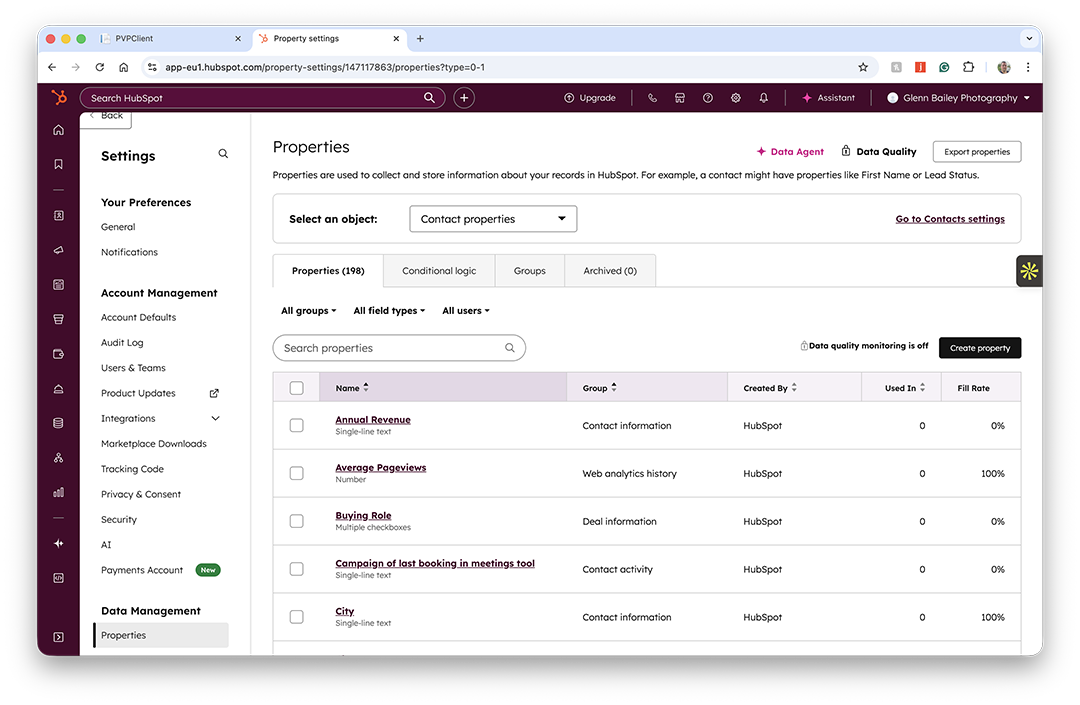
Select Contact Properties, and hit ‘Create Property’.
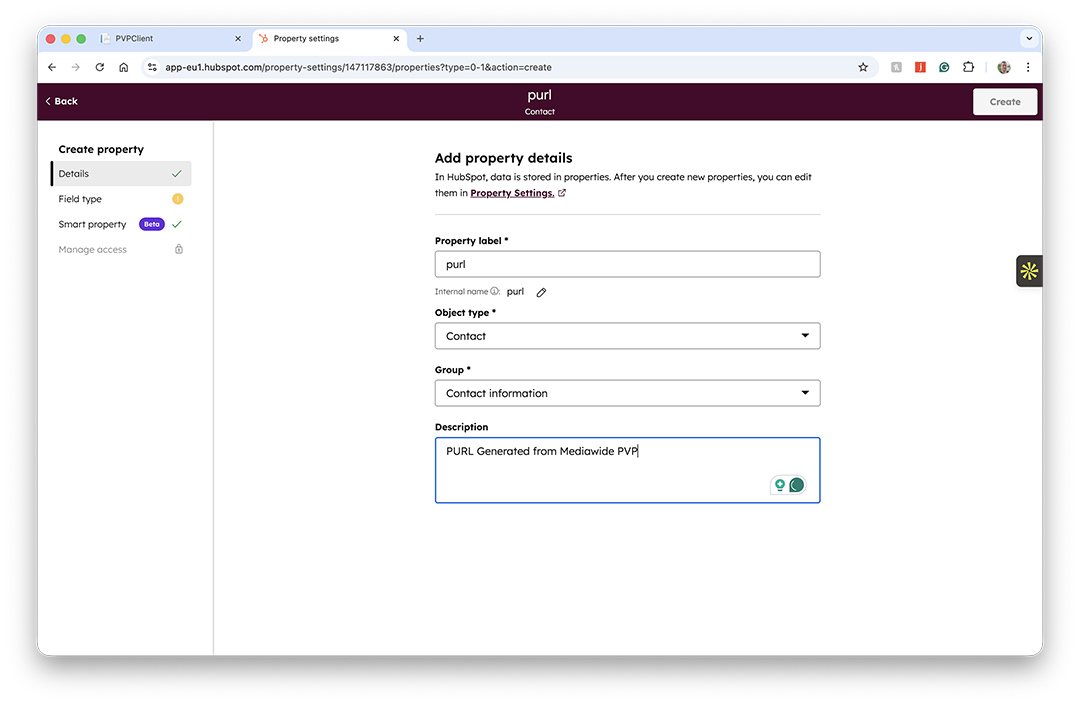
Fill in the form based on tyour requirments, however we recommend using the word ‘PURL’ as the property label.
The ‘Object type’ should be ‘Contact’, and belong in the ‘Contact information’ group.
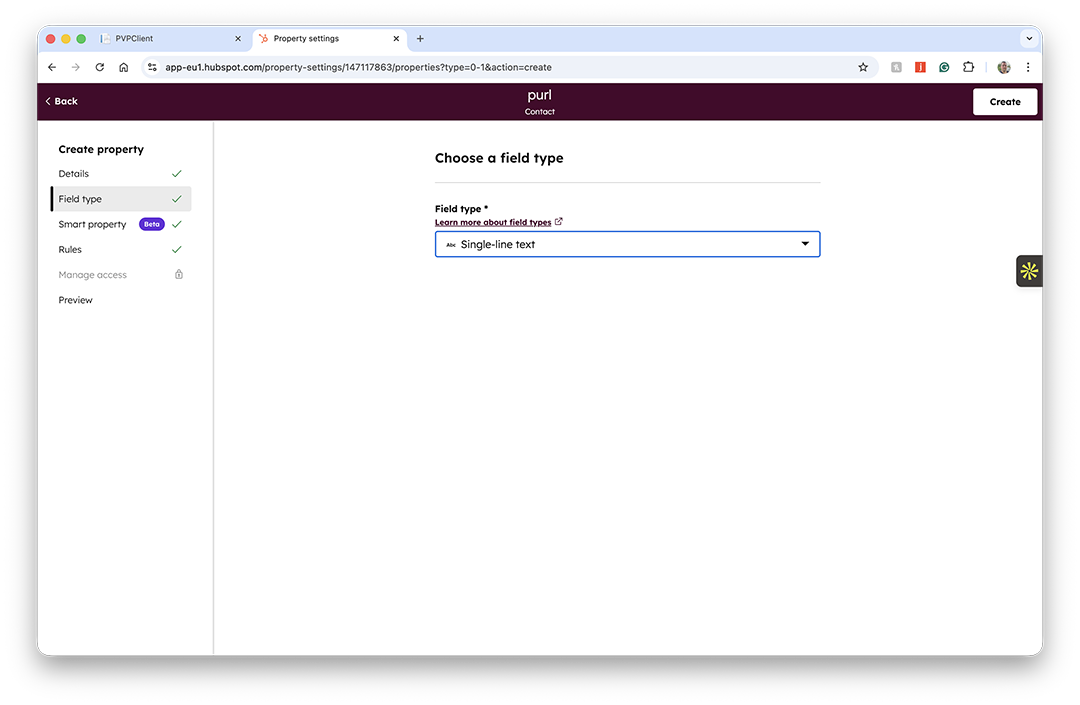
The Field Type shpould be ‘single-Line Text’, and there are no specific Rules to use.
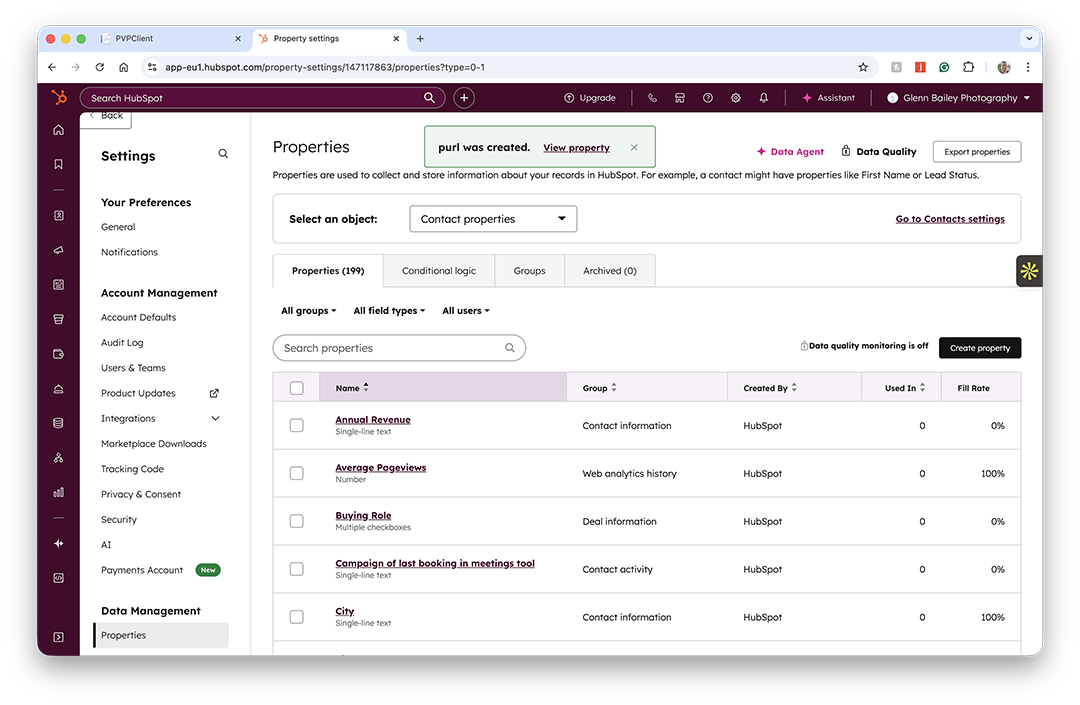
Click Create to create the field, and a notification will appear if successful.
Create a Segement (Contact List)
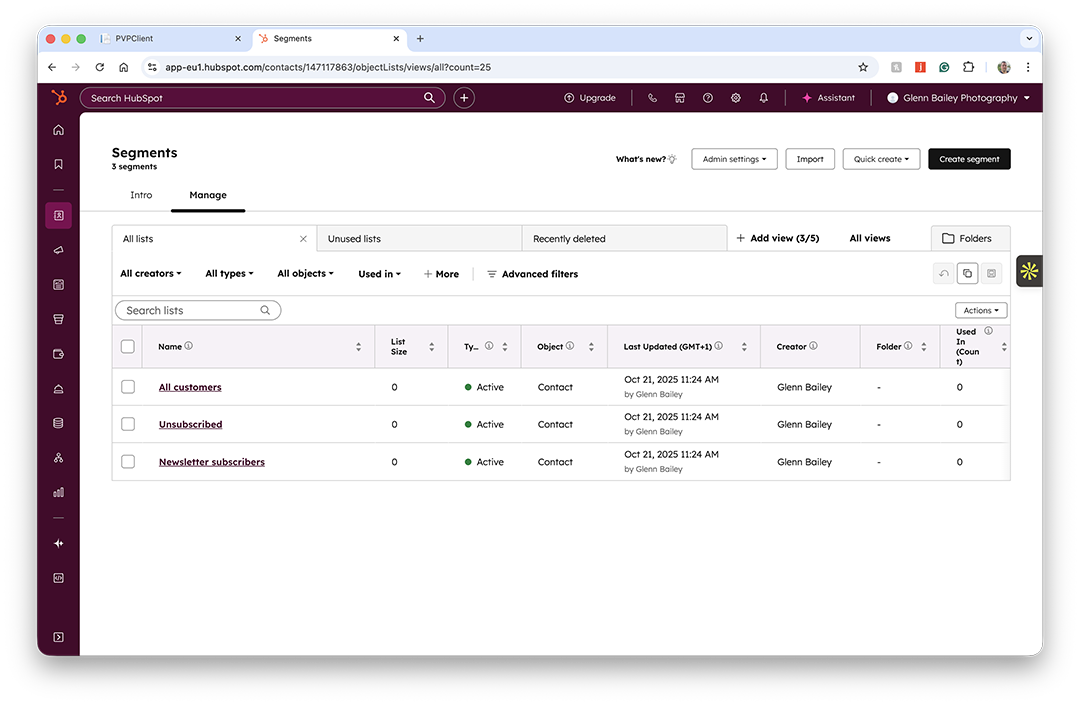
The Mediawide Integration expects a Contact list (Segment) with contacts for whom the videos must be created. Therefore, if you do not already have a list, create a list along with some contacts.
Go to the ‘Segments (Lists)’ page and click on ‘Create Segement’ You can use static or active segments. Once created, the segment list will sppear in the segment page
Add Contacts to the Segment (List)
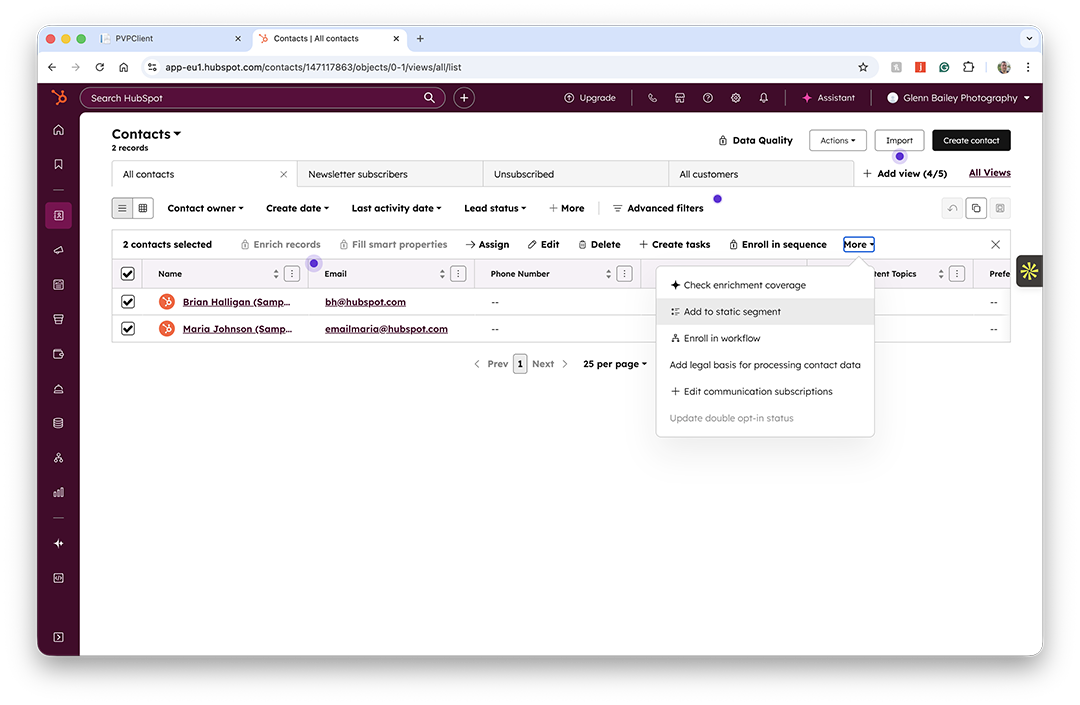
The Mediawide Personalized Video Platform works by selecting contacts from segments, therefore contacts must belong in the segment (list) you have just created.
The simplest way to do this is within the contact screen. Select your contacts and choose ‘Add to static list’ item at the top of the table.
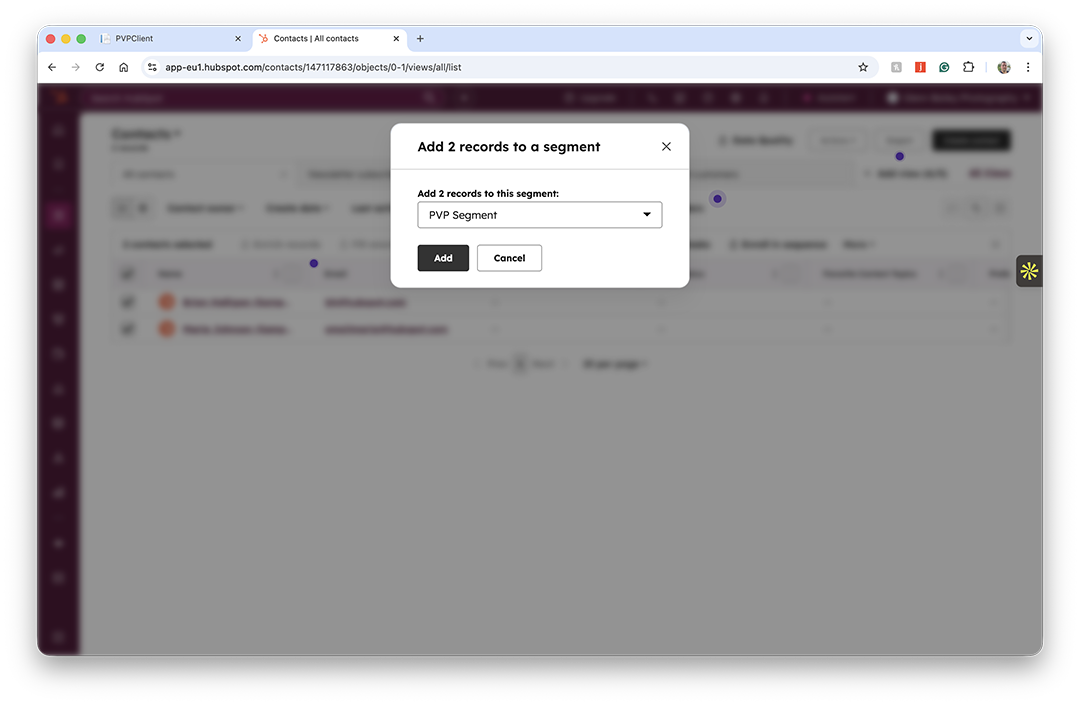
Once you haev contacts in the segment, HubSpot is prepared to recieve personalized videos to be used within the platform.
Use the app to Create a Personalized Video
Data File Required for Video
To create a video, we require a data file to be created; this can be in CSV, XML, or JSON format. In this example, we will use XML.
For this example walkthrough, we will use an annual investment video, which uses the first name and investment amount within the video. Therefore, we will need a data file that contains this information, along with the email address of the contact within HubSpot.
Here is an example XML file…
<root>
<record>
<fname><![CDATA[Brian]]></fname>
<investamnt><![CDATA[$25,000]]></investamnt>
<email><![CDATA[[email protected]]]></email>
</record>
<record>
<fname><![CDATA[Maria]]></fname>
<investamnt><![CDATA[$35,000]]></investamnt>
<email><![CDATA[[email protected]]]></email>
</record>
</root>
You can copy and paste this into a text file, edit the field values to match your contacts in HubSpot, and save it with the extension .xml
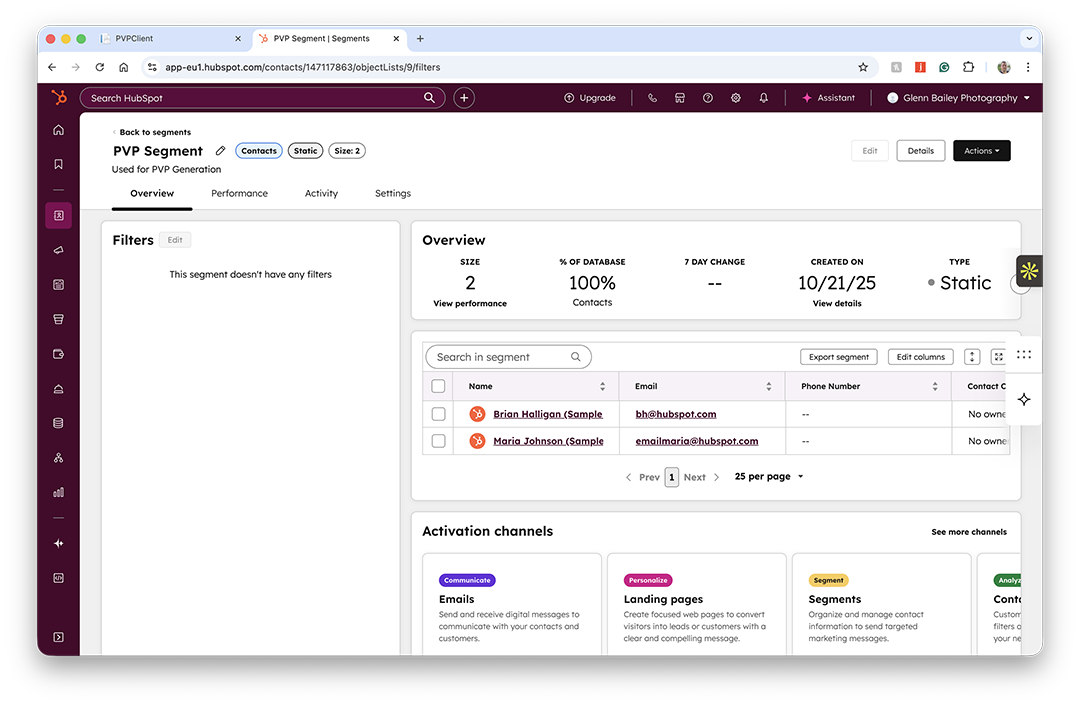
Within Hubspot, these contact email addresses will need to exist – as you can see from the below, I have a list called ‘PVP Segment’, and these two contacts exist in this list.
Create the Videos
This next section is performed in the Mediawide Personalized Video Platform – https://personalizedvideoplatform.mediawide.com/
Log in and then select Campaigns from the top menu
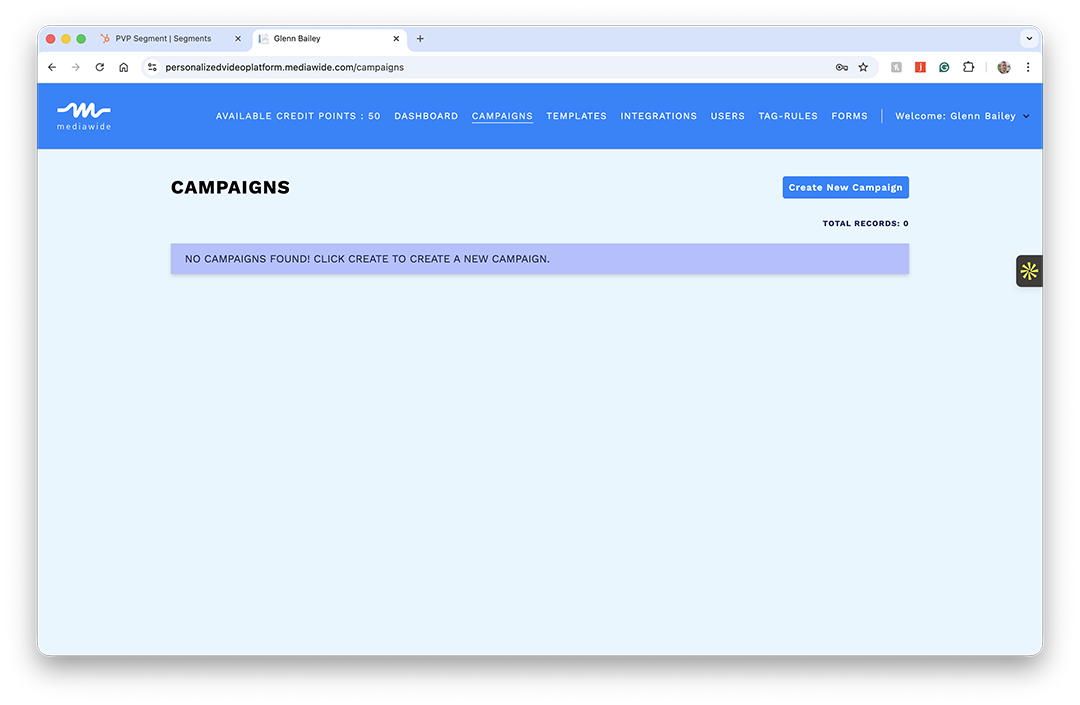
Click ‘Create New Campaign’, and then select ‘Hubspot Campaign’ and click ‘Next’.
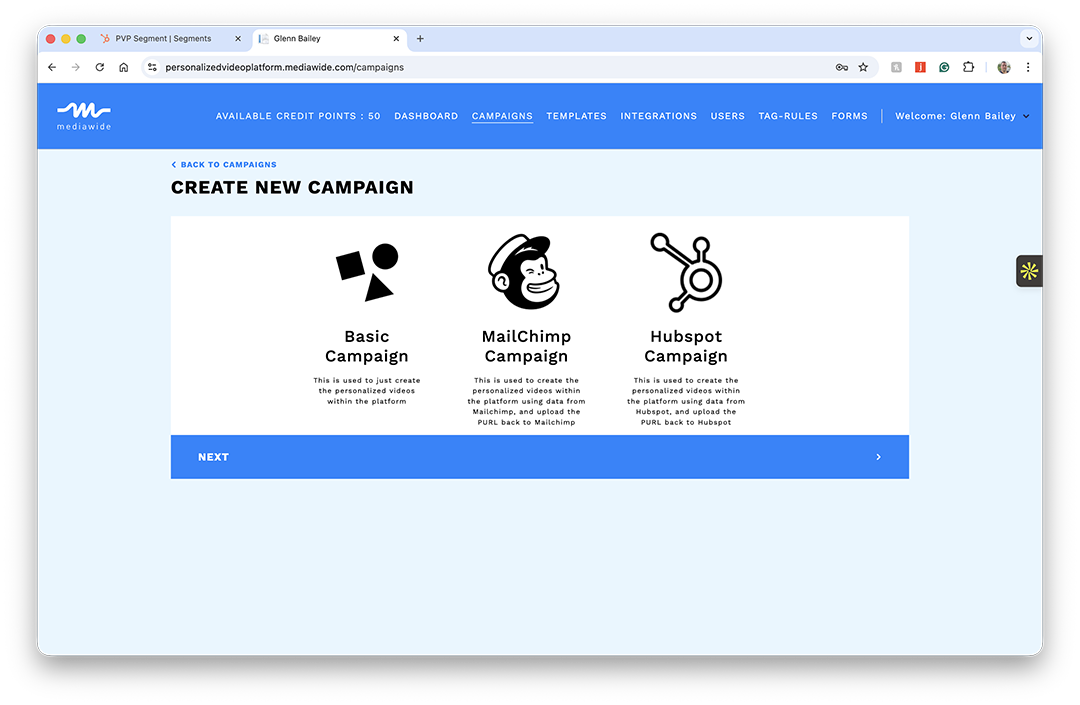
Enter the campaign name
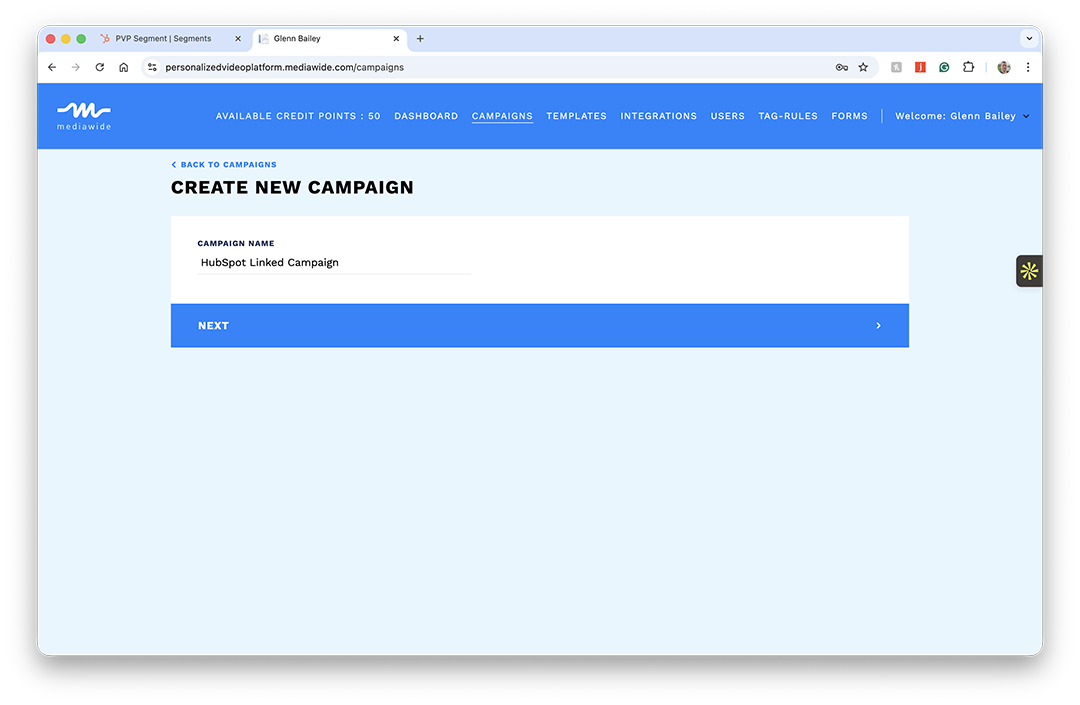
Choose the Video Template you wish to use (For this example use ‘Annual Investment’)
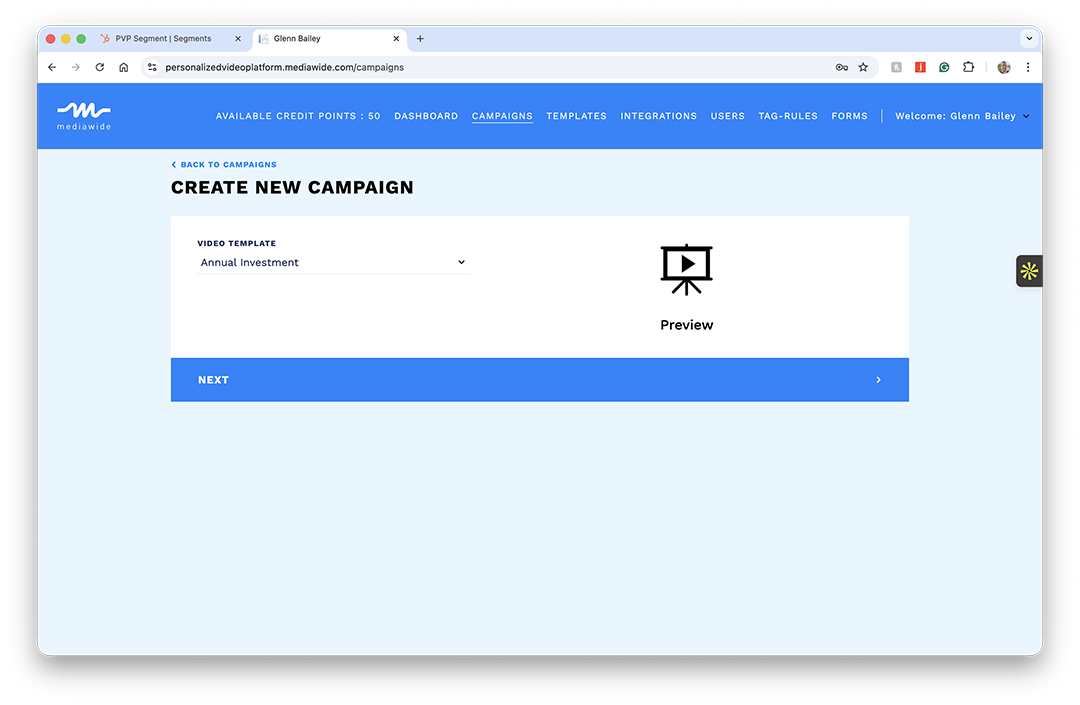
Select ‘Upload Data File’ and hit Next.
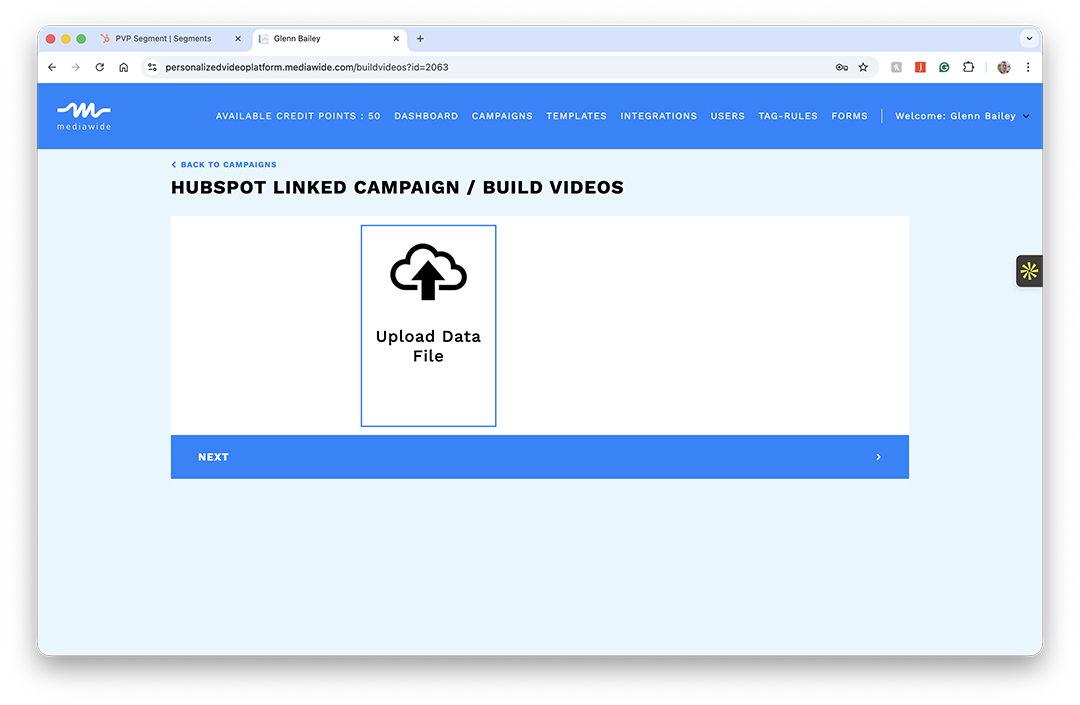
Drag and drop or select the XML file you created where located.
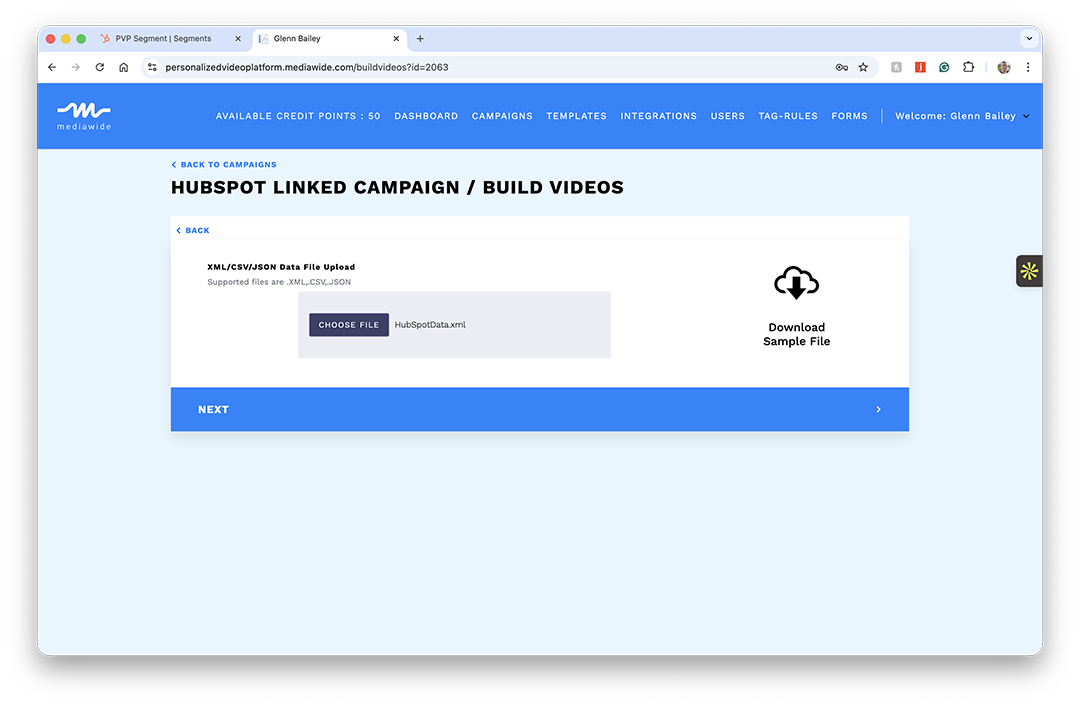
If you get an error after you hit next, check the XML file for extra characters; use an app such as Notepad++ or Sublime Text to see these characters.
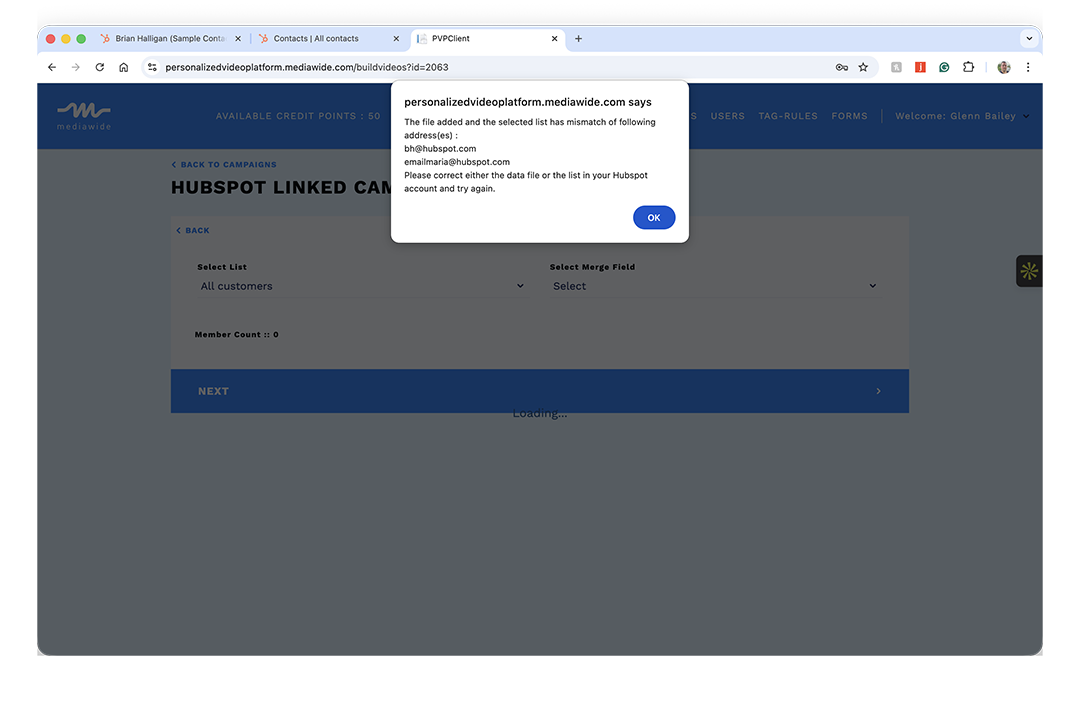
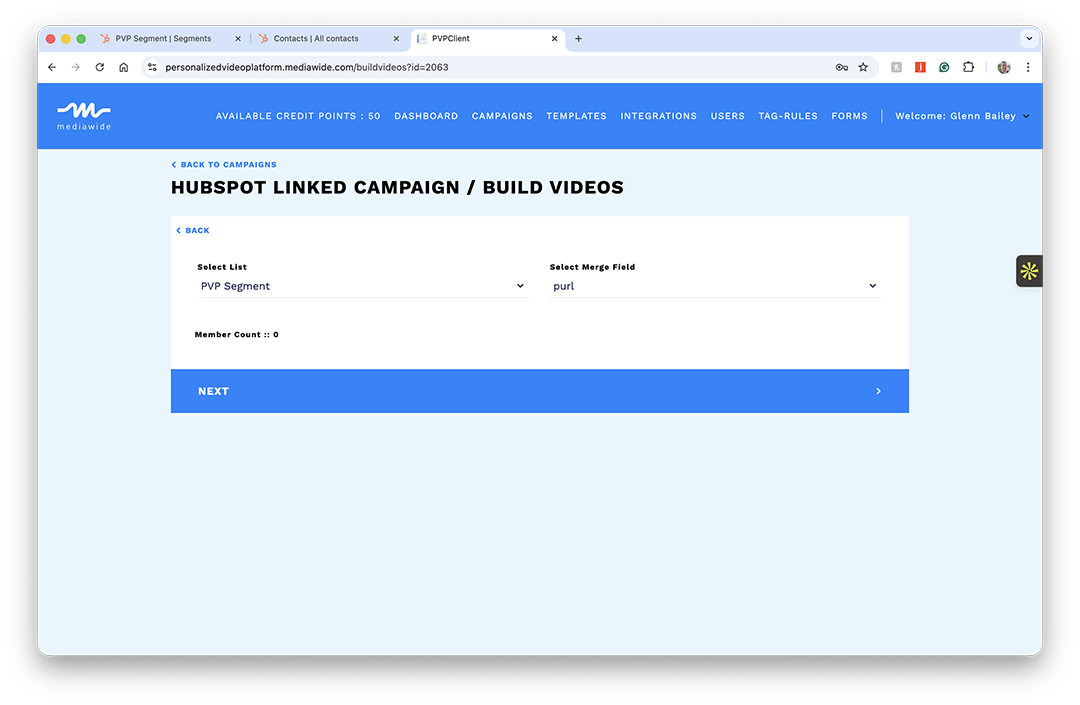
On the next screen, this is where you now choose the HubSpot Segment (List) and Contact field you created earlier, simply use the dropdown to select these, and then hit next. You may get an error if the contact in the data file does not match the contacts in the contact list.
If it matches, you will not get a message, and you can click ‘Next’.
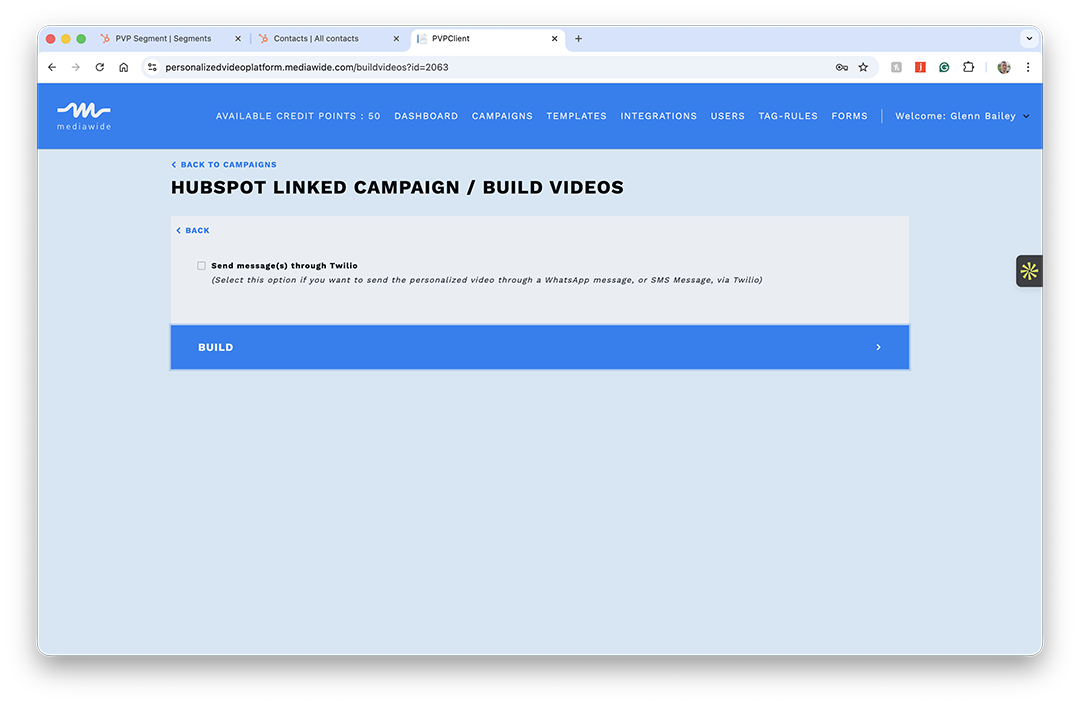
The last screen allows you to sent SMS/WhatsApp messages via Twilio integration, leave this unticked to just use HubSpot, and click ‘Build’
View videos in HubSpot
Once the videos are generated, the the PURL field in Hub/Spot will be updated with the PURL of the video generated. You can view this by looking at the PURL field in the contact.
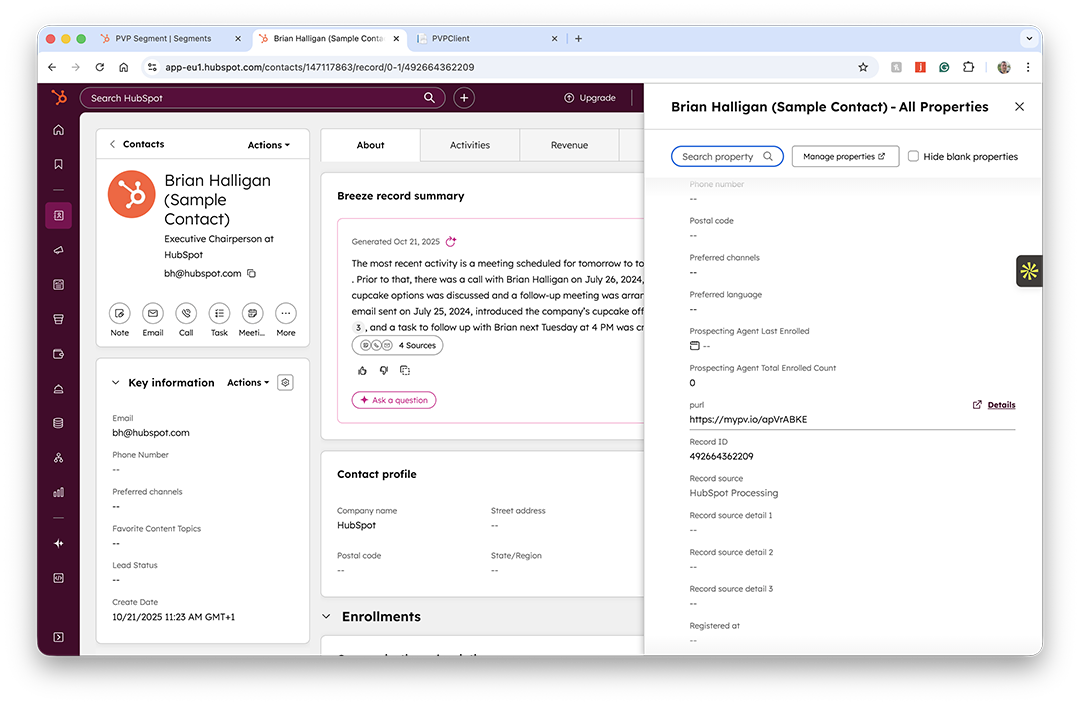
This PURL can be used within emails as an embedded link so the contact can view this video.
To test the video, you can use this PURL in a browser and then press play to view the video. Within the video, you will see the name and value change per contact.
Disconnect the app
Note: If you disconnect your HubSpot account from the Personalized Video Platform Connector by Mediawide, Video PURLS will no longer be uploaded to HubSpot contacts & lists. Existing data will remain on your HubSpot records.
- Log in to the Mediawide Personalized Video Platform.
- Navigate to Integrations > HubSpot.
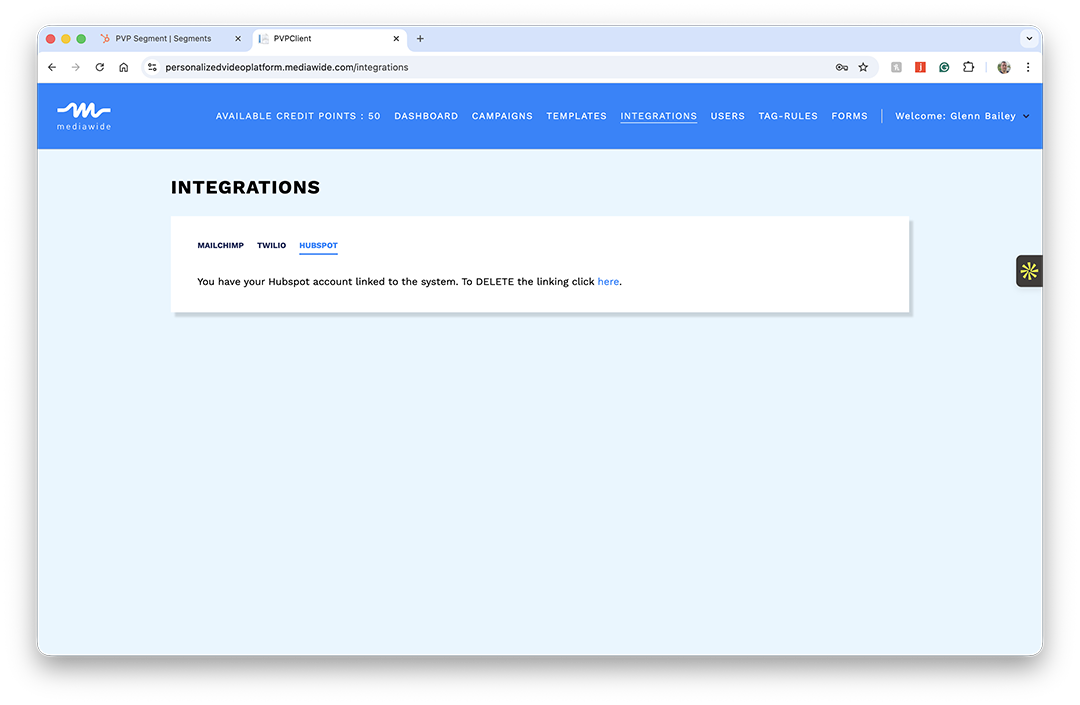
- Click the link to Disconnect.
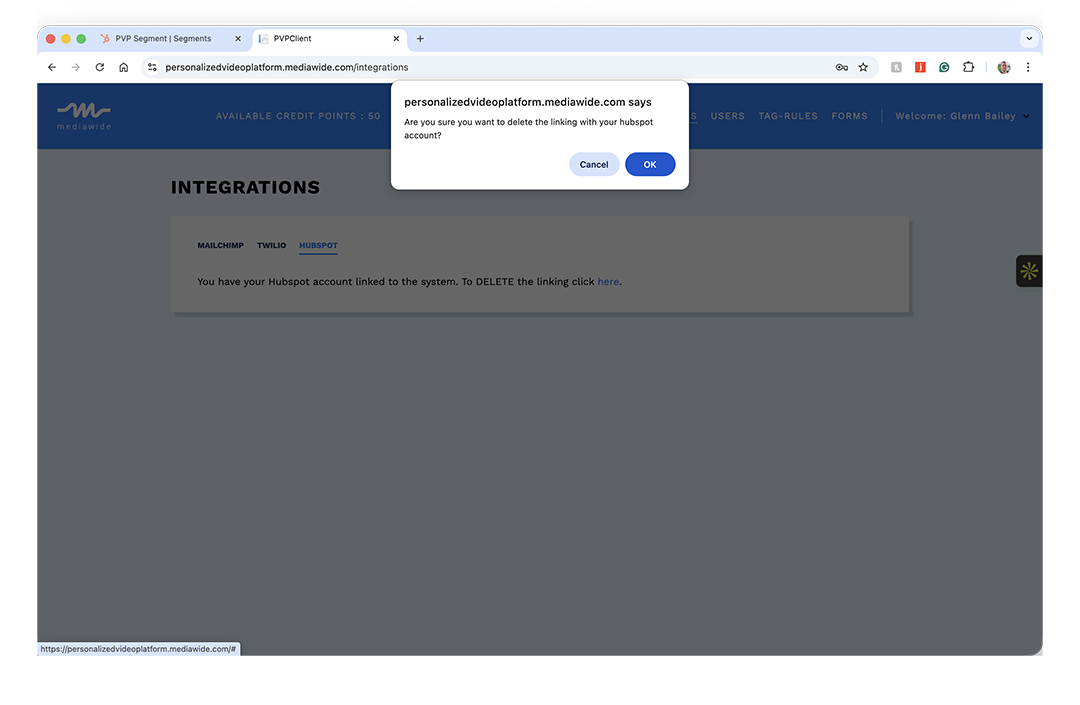
- Confirm you want to disconnect the HubSpot Integration
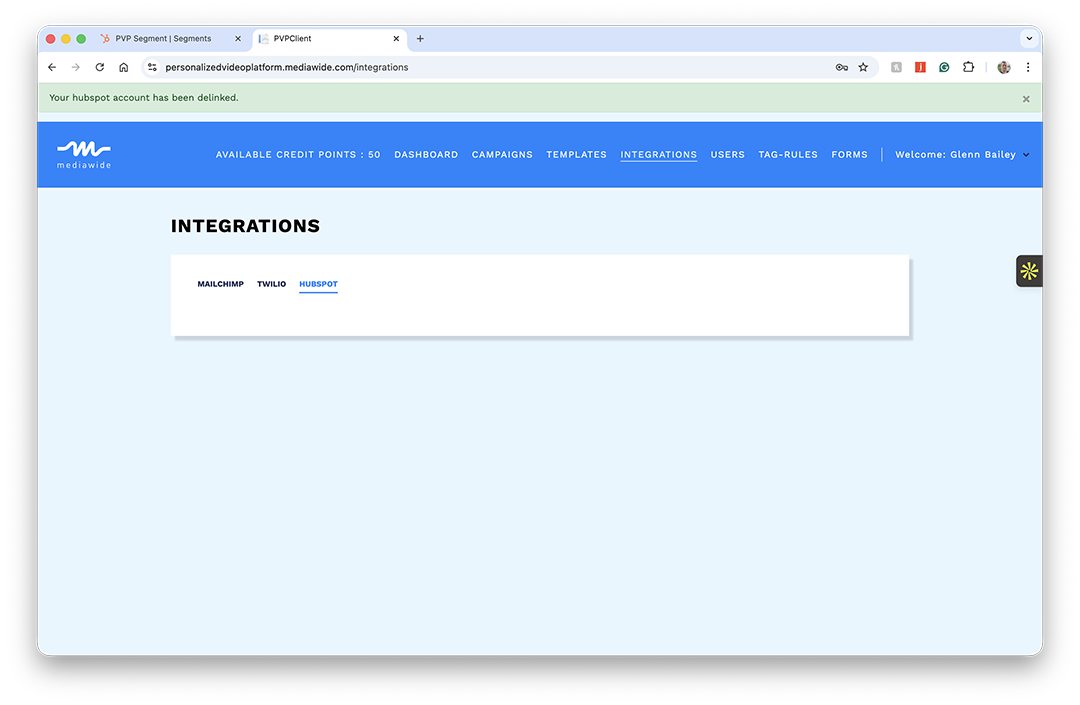
- Confirmation of disconnect will be shown inthe green bar at the top of the screen.
Uninstall the app
- In your HubSpot account, click the settings settings icon in the top navigation bar. In the left sidebar menu, navigate to Integrations > Connected Apps.
- Click Actions on the app you want to disconnect, then click Uninstall.
- In the dialog box, type “uninstall” in the text field and click Uninstall.
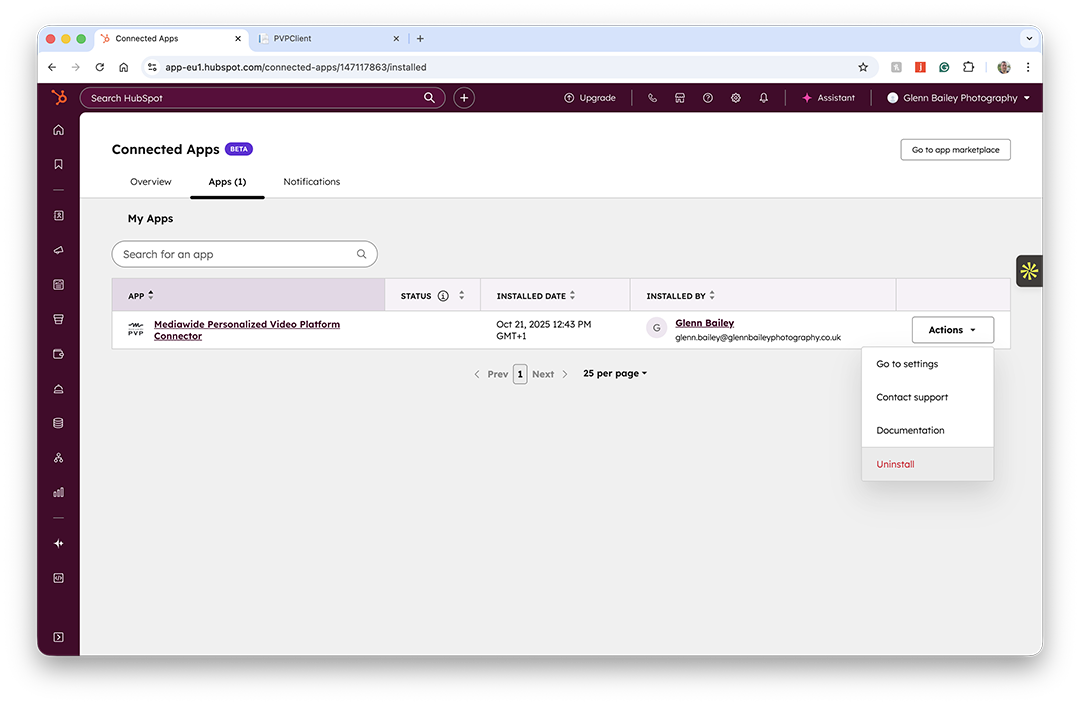
Further instructions do uninstall HubSpot connected apps can be found in this HubSpot Knowledge Base article.
Explore the Mediawide Personalized Video Platform
Sign up free with 50 credits